Employee Ranks
This guide explains how to use the Employee Ranks feature in FlyLAT.
Introduction
In this section we are going to look at how to promoteor demote an employee.
Notes
This only applies to real pilots at this moment in time.
Steps
- Once you've logged in, click "Employees" in your main menu
- Select the employee you wish to promote / demote
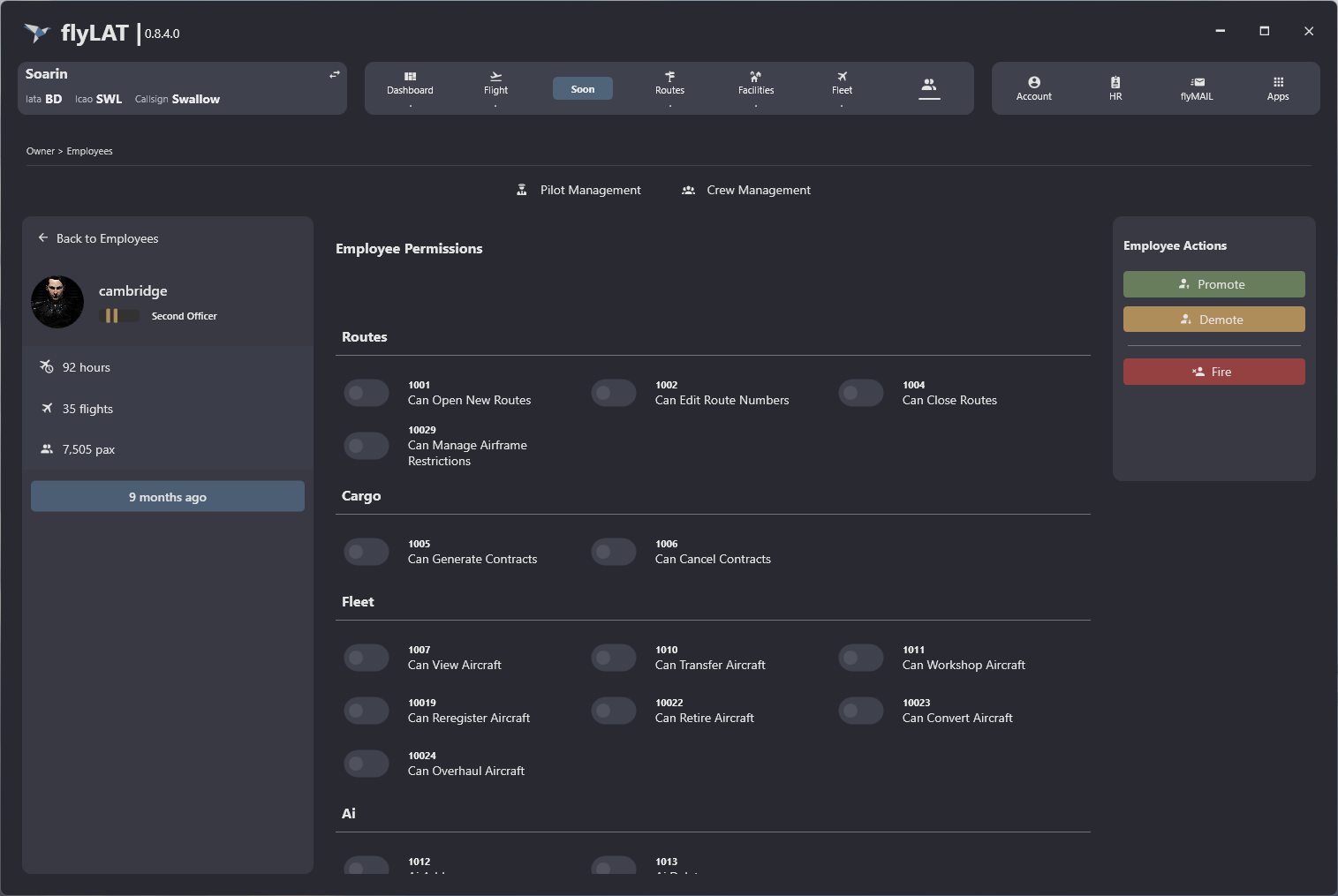
- The Employee will load and you will be greeted with their details to the left, permissions in the centre and actions to the right.
- On the right hand side, you will see the actions available to you. Promote, Demote * and Fire.
- Selecting Promote or Demote will action the rank change instantly
* Promote and Demote actions will automatically show & hide based on employee rank
Reference
image 1: No Demote
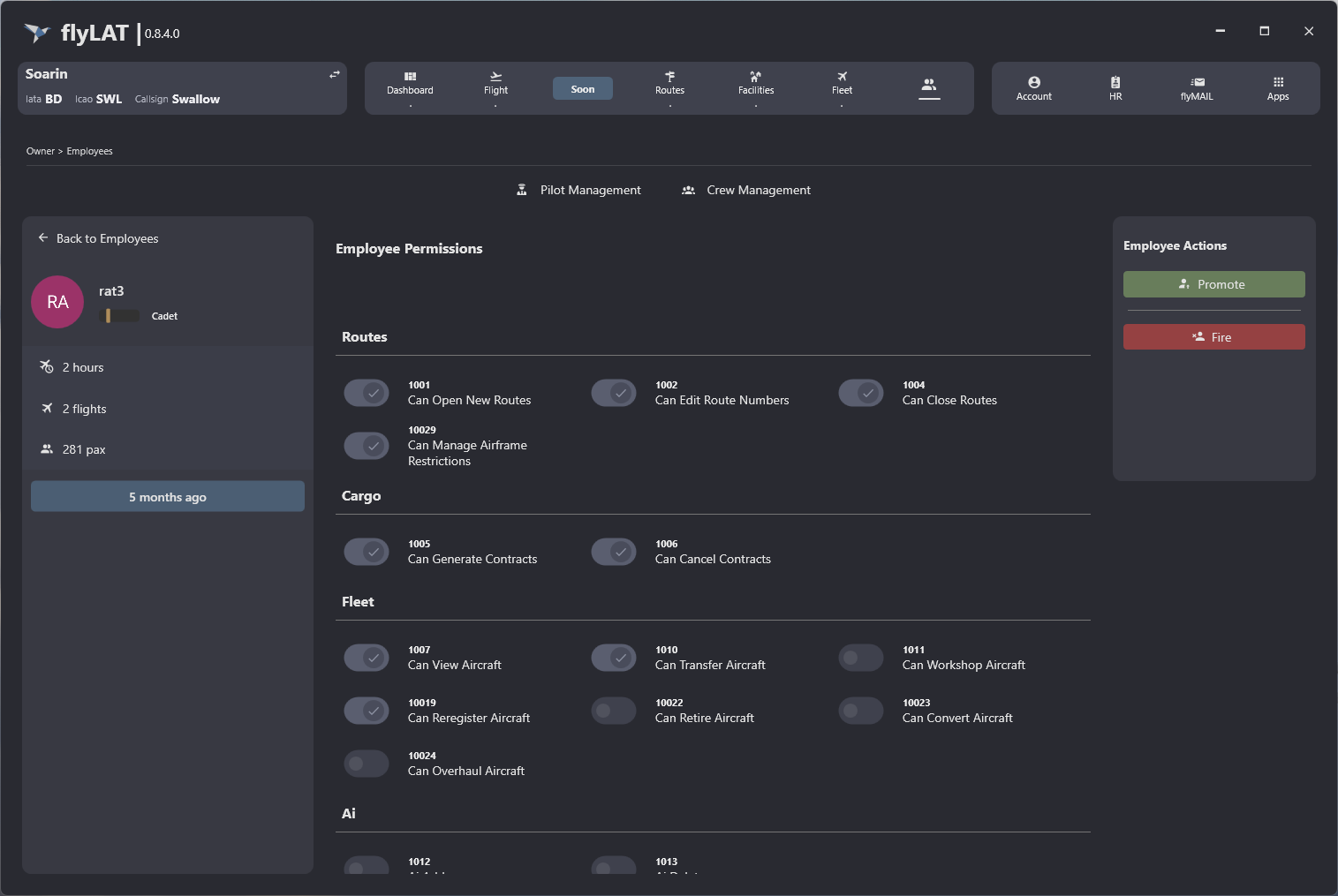
image 2: with demote